Pace
Rhythm and breathing room
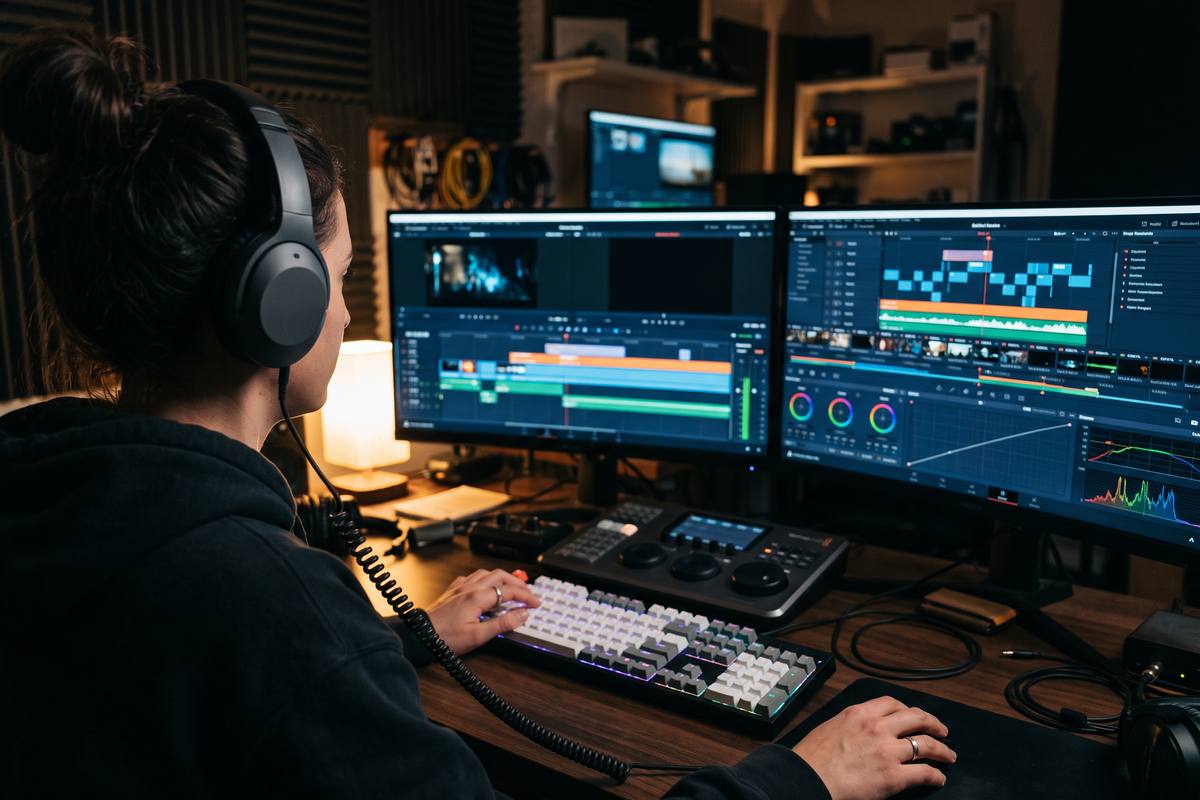
Consistent shot lengths with deliberate longer beats create a rhythm the viewer follows without noticing the editing.
Editing workflow for short-form video
Most editing time is lost to decisions, not to rendering. These guides describe the order we work in, the shortcuts that remove repetitive clicks, and the three passes that turn a rough assembly into a finished vertical video.
The working order
An edit becomes slow when decisions are made in the wrong order. Choosing music before the story is clear, or colour before the cut is locked, guarantees rework.
We work in five stages: assemble the story, lock the structure, set the pace, add the text, then finish the look and the sound. Each stage has a single question attached to it, which is what makes the process repeatable.
None of this requires expensive software. The order matters far more than the tool, and every technique described here works in free editors as well as in professional suites.
Stage by stage
Only one question is allowed at each stage. Answer it, then move on.
Question: does the sequence make sense without any music or text? Lay the shots in order, ignore timing, and keep every take you might use on a second track.
Question: does every shot earn its place? Remove the shots that repeat information or interrupt the flow. This is the stage where most of the runtime disappears.
Question: where does the viewer need air? Cut for rhythm now, using the shot lengths to control attention rather than trimming frames randomly.
Question: can this be understood with the sound off? Place captions, labels and any on-screen words with a consistent style and a safe margin.
Question: does anything distract from the message? Correct colour, balance the audio, add the music bed and check the result on a phone speaker.
Pacing
Viewers do not perceive pacing as a technical attribute. They feel it as attention: long shots invite thought, short shots create momentum, and a cut placed on a movement or a sound feels invisible.
The practical rule we use is to decide target lengths in advance for each part of the video. An opening shot usually wants to be short and clear; a demonstration can hold longer; the final shot should end on a complete action rather than mid-motion.
Finishing work
Once the structure is locked, these passes take a rough assembly to a published clip.
Pace
Consistent shot lengths with deliberate longer beats create a rhythm the viewer follows without noticing the editing.

Text
Two lines maximum, a consistent position, and a background contrast treatment that survives on both dark and bright footage.
Colour
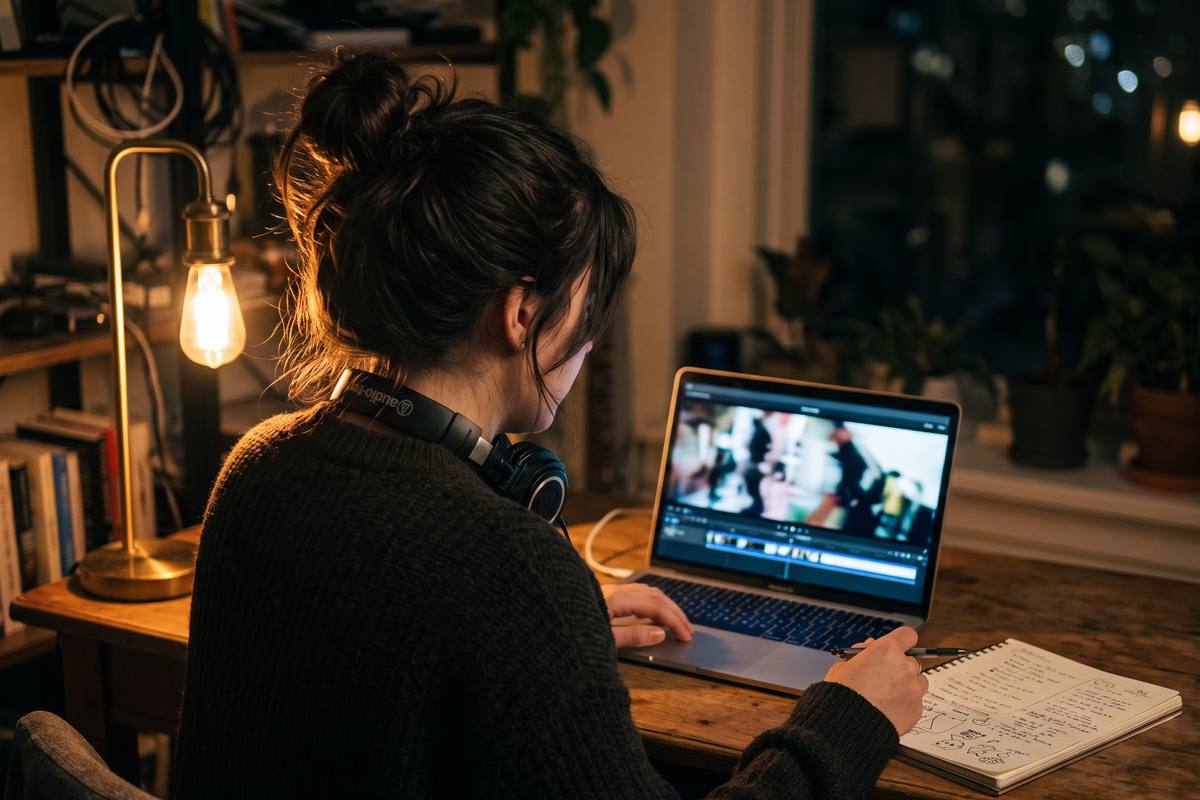
One contrast adjustment and one white balance correction recover most footage shot indoors with automatic settings.
Before you export
Running this list once costs two minutes and catches almost every embarrassing export mistake.
Editing questions
Once the workflow is familiar, between forty and ninety minutes for a simple talking or product clip, including captions and colour. The first version of any new format always takes longer, because decisions are still being made.
Lock the structure first, then place music and cut the rhythm to it. Editing to music too early makes it very hard to remove a shot that the story does not need, because the timing already belongs to the track.
Use a transcript view if your editor has one, delete the words visually, then refine the cut points by sound. Manual trimming of every pause takes longer than learning the shortcut.
No. Every technique here works in free desktop and mobile editors. Professional tools add speed and precision on long projects, not better results on short ones.
Save a template project with your caption style, safe margins, colour preset and export settings. Consistent output comes from reused settings far more than from new ideas.
Guides
Read them in the order of the workflow: pace first, text second, colour last.
Editing rhythm
How shot length, cut points and breathing room control attention in a vertical video.
Captions
Line limits, placement, contrast treatments and safe margins so text survives every phone size.
Colour
One contrast adjustment, one white balance correction and a check on skin tones that works on automatic footage.
Feedback
Describe where the edit breaks down and what you have already tried. We read every message and often turn the answer into a published example.